Beginner Guide | Local Deployment of the gpt-oss-120b Model
gpt-oss-120b is a high-performance AI open-source large model released by OpenAI in August this year. It is designed for complex reasoning scenarios and supports local inference on edge devices.
If you need to run this model on Thor, you can contact sales for clarification. The device will come pre-installed with the large model at the factory, allowing you to use it out of the box after power-on.

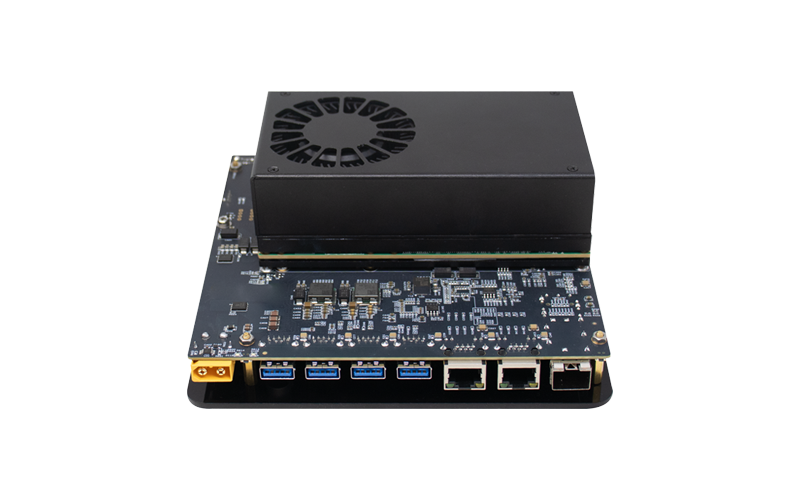
Next, we will guide you step-by-step on how to deploy and run the gpt-oss-120b model locally on the self-developed Jetson Thor series embodied AI computing platform (Y-C28-DEV / Thor-28F1).
01 Deploying the gpt-oss-120b Model
Use Docker (Ollama) for local deployment of the gpt-oss-120b model.
Step 1: Power on the device
Connect display, input devices, and network cable to the Y-C28-DEV / Thor-28F1, then power it on. Unless otherwise specified, the system is a clean installation, and software needs to be installed manually. Use the following commands to install JetPack 7:
sudo apt update
sudo apt install nvidia-jetpack
Step 2: Install Docker
sudo apt update
sudo apt install -y nvidia-container curl
curl https://get.docker.com | sh && sudo systemctl --now enable docker
sudo nvidia-ctk runtime configure --runtime=docker
Step 3: Install Ollama in Docker
mkdir ~/ollama-data/
sudo docker run -it -p 11434:11434 --runtime=nvidia --name ollama -v ${HOME}/ollama-data:/data ghcr.io/nvidia-ai-iot/ollama:r38.2.arm64-sbsa-cu130-24.04
Command explanation:
--runtime=nvidia Enables GPU acceleration inside the container
-p 11434:11434 maps port 11434 inside the container (Ollama default port) to port 11434 on the host. This is required if you want to use Cherry Studio to call Ollama. If not needed, you can remove this parameter.
-v ${HOME}/ollama-data:/data mounts the host directory ${HOME}/ollama-data into /data inside the container, for persistent storage of Ollama models and configuration. Data will not be lost after the container is removed. Adjust as needed.
Step 4: Pull and run the model
ollama pull gpt-oss:120b
ollama run --verbose gpt-oss:120b
Speed: 25 tokens/s. This is a normal GPU-accelerated speed. You can adjust parameters to increase performance if needed.
Exit conversation:
/byeExit container:
exitRestart container:
sudo docker restart ollamaRe-enter container:
sudo docker exec -it ollama /bin/bash02 Install Cherry Studio Software
After completing the above steps, the gpt-oss-120b model is deployed and can be used via command line.
For easier usage, we provide a graphical tool—Cherry Studio. It uses multi-model aggregation technology, local deployment solutions, and end-to-end automation to reshape human-computer interaction and significantly improve complex task efficiency. Below is the installation guide.
Download the ARM version from the official website, transfer it to the device, and install it using:
chmod +x Cherry-Studio-1.5.9-arm64.deb
sudo dpkg -i Cherry-Studio-1.5.9-arm64.deb
Open Cherry Studio from the bottom-left menu, go to Settings → Ollama, and you will see the installed gpt-oss-120b model. Select it, return to the home screen, and start using it.
03 Common Issues
Insufficient Memory:
1. Run sudo jtop
2. Press 4
3. Press c to clear cache
4. Press q to exit